On this page
- What “How did you hear about us?” tracking tells you
- Step 1: Choose “How Did You Hear About Us?” survey options
- Step 2: Send the answer to the GA4 data layer
- Step 3: Configure Google Tag Manager and GA4
- Verify the event in GA4 DebugView
- Step 4: Connect the correct GA4 property to Brandwave
- Step 5: Choose the event that matters
- Step 6: Choose the HDYHAU event detail
- Close the loop in Brandwave reporting
- Troubleshooting checklist
- Get help with your setup
- FAQ
What “How did you hear about us?” tracking tells you
Web analytics is good at recording clicks. It is less reliable when somebody discovers your brand in a podcast, sees several creator posts, hears a recommendation in a private group, then visits your website directly days later. “How did you hear about us?”, often shortened to HDYHAU, adds the customer’s own account of that discovery.
Also called self-reported attribution, HDYHAU helps to expose word of mouth, the influence of creators, podcasts, communities, newsletters, AI assistants, and other sources that can disappear into direct traffic or an incomplete last-click journey. HDYHAU is not perfect attribution: responses depend on memory and will not capture every touchpoint. But it is still a valuable signal when considered alongside behavioral analytics, tracked links, promo codes, and creator-performance data, helping you identify patterns and make better-informed marketing decisions.
Step 1: Choose “How Did You Hear About Us?” survey options
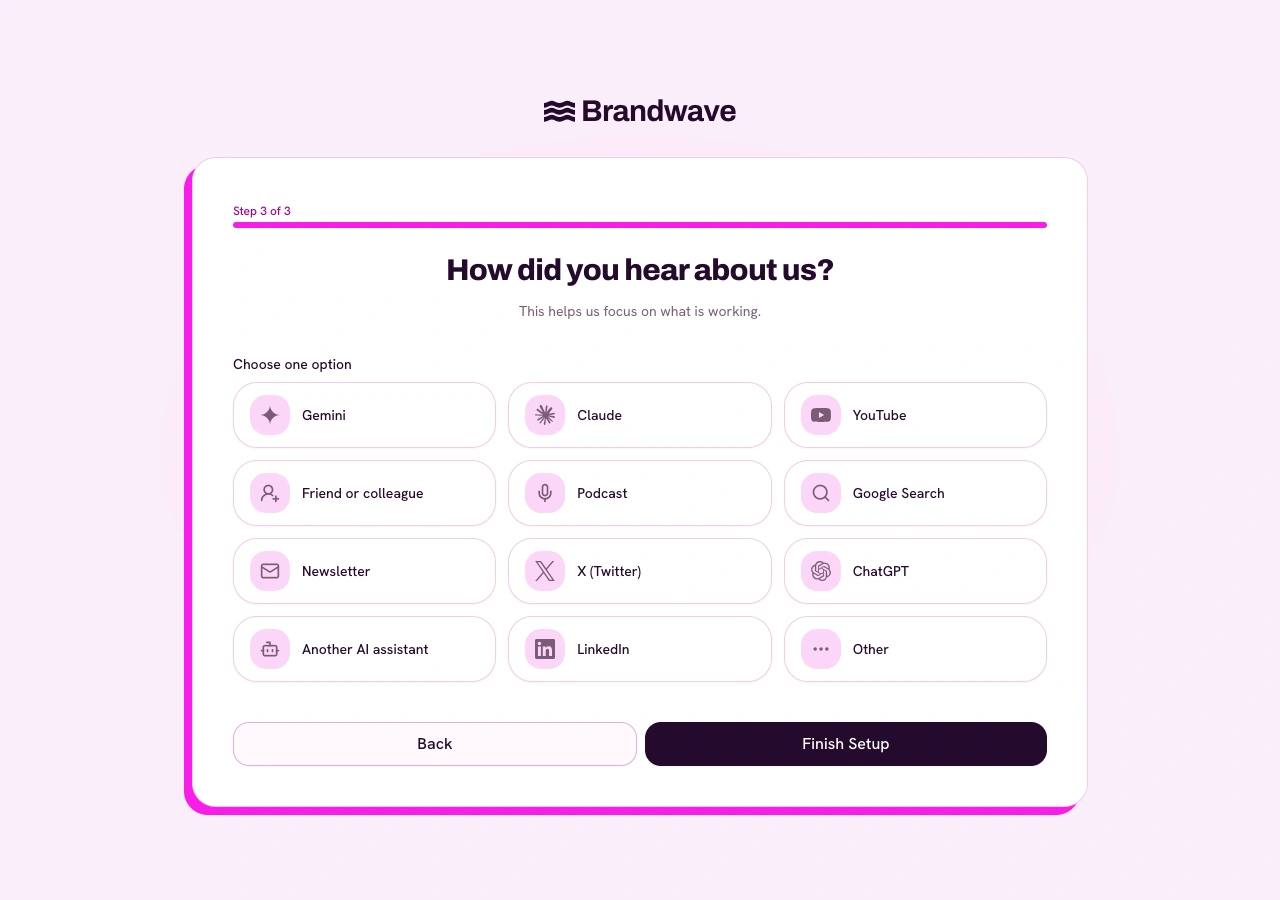
Place the "how did you hear about us" question immediately before or after whatever event it is that you define as success for your business. This could be a sign up, an account creation, a download, a demo request, or a successful checkout.
For most teams, a single-choice list with an “Other” option is easier to complete and analyze than a blank text box. If you're tracking your creator program with Brandwave, we suggest you add options for creator marketing and even call out creators by name if that is practical for the size of your program.
Google Search
- When to include it
- Organic search matters to acquisition
- Useful follow-up
- What did you search for?
Creator or social platform
- When to include it
- You invest in creator content
- Useful follow-up
- Which creator?
Friend or colleague
- When to include it
- Referrals and word of mouth matter
- Useful follow-up
- Optional free text
Podcast or newsletter
- When to include it
- You sponsor or appear in media
- Useful follow-up
- Which one?
ChatGPT or another AI assistant
- When to include it
- AI discovery is plausible for your audience
- Useful follow-up
- Which tool?
Other
- When to include it
- Always include a catch-all
- Useful follow-up
- Please tell us more
| Option | When to include it | Useful follow-up |
|---|---|---|
| Google Search | Organic search matters to acquisition | What did you search for? |
| Creator or social platform | You invest in creator content | Which creator? |
| Friend or colleague | Referrals and word of mouth matter | Optional free text |
| Podcast or newsletter | You sponsor or appear in media | Which one? |
| ChatGPT or another AI assistant | AI discovery is plausible for your audience | Which tool? |
| Other | Always include a catch-all | Please tell us more |
Keep the stored value stable and machine-friendly, such as google_search, podcast, or friend_or_colleague.
Step 2: Send the answer to the GA4 data layer
Ask the person who manages your website or tag setup to push your success event to GA4. This should contain a consistent event name and a parameter containing the HDYHAU answer. The example below records a successful sign-up and the answer podcast. Your event might instead be generate_lead, purchase, or another GA4 event that represents the outcome you care about.
dataLayer.push({ event: 'sign_up', hdyhau: 'podcast' })
Step 3: Configure Google Tag Manager and GA4
In Google Tag Manager, create a Data Layer Variable named DLV - hdyhau with the data layer variable name hdyhau. Create a Custom Event trigger for the conversion event, such as sign_up. Then create or update a GA4 Event tag so it sends the event name and the hdyhau parameter to the correct GA4 measurement ID.
Data Layer Variable
- Name:
DLV - hdyhau· Variable:hdyhau· Version: 2
Custom Event trigger
- Event name:
sign_up
GA4 Event tag
- Event name:
sign_up
Event parameter
- Parameter:
hdyhau· Value:{{DLV - hdyhau}}
Firing trigger
- The
sign_upCustom Event trigger
| GTM item | Recommended value |
|---|---|
| Data Layer Variable | Name: DLV - hdyhau · Variable: hdyhau · Version: 2 |
| Custom Event trigger | Event name: sign_up |
| GA4 Event tag | Event name: sign_up |
| Event parameter | Parameter: hdyhau · Value: {{DLV - hdyhau}} |
| Firing trigger | The sign_up Custom Event trigger |
Next, open GA4 and create an event-scoped custom dimension. Use a readable display name such as "How did you hear about us", choose Event scope, and enter hdyhau as the event parameter. We recommend you mark this success event as a key event.
Complete a test conversion and confirm that the custom event fired, DLV - hdyhau contains the expected value, and the GA4 Event tag sent hdyhau as the parameter name. Then check GA4 DebugView. Standard GA4 reports and newly created custom dimensions can take 24 to 48 hours to populate, so DebugView is the faster setup check.
Verify the event in GA4 DebugView
Before waiting for standard reports, use GA4 DebugView to confirm that the success event arrives with the expected hdyhau value. Complete a test sign-up or other conversion while debug mode is enabled, open DebugView in the same GA4 property, and select the event to inspect its parameters.
If hdyhau is missing or has the wrong value, fix the data layer variable or GA4 Event tag before continuing. DebugView is for validating collection in real time; the event-scoped custom dimension is what makes the parameter available for reporting later.
Step 4: Connect the correct GA4 property to Brandwave
In Brandwave, open Workspace settings → Integrations, connect Google, and select the Google Analytics 4 property that receives your success event and HDYHAU parameter.
Brandwave receives read-only access to your GA4 data. If the expected property is missing, check that the Google account completing the connection has access to it.
Step 5: Choose the event that matters
Open Intelligence → Customers and use Add event in the Success events section. Brandwave calls the GA4 events you care about "success metrics". Select the same event that carries the HDYHAU answer, such as sign_up, generate_lead, or purchase. A success metric should represent a meaningful outcome to your business.
Brandwave backfills available event history after setup. If your event does not appear, submit a test conversion, verify it in GA4, and allow time for GA4 to make the event available through its reporting APIs.
Step 6: Choose the HDYHAU event detail
On the event-details step, select the registered GA4 custom dimension that represents your HDYHAU answer.
Close the loop in Brandwave reporting
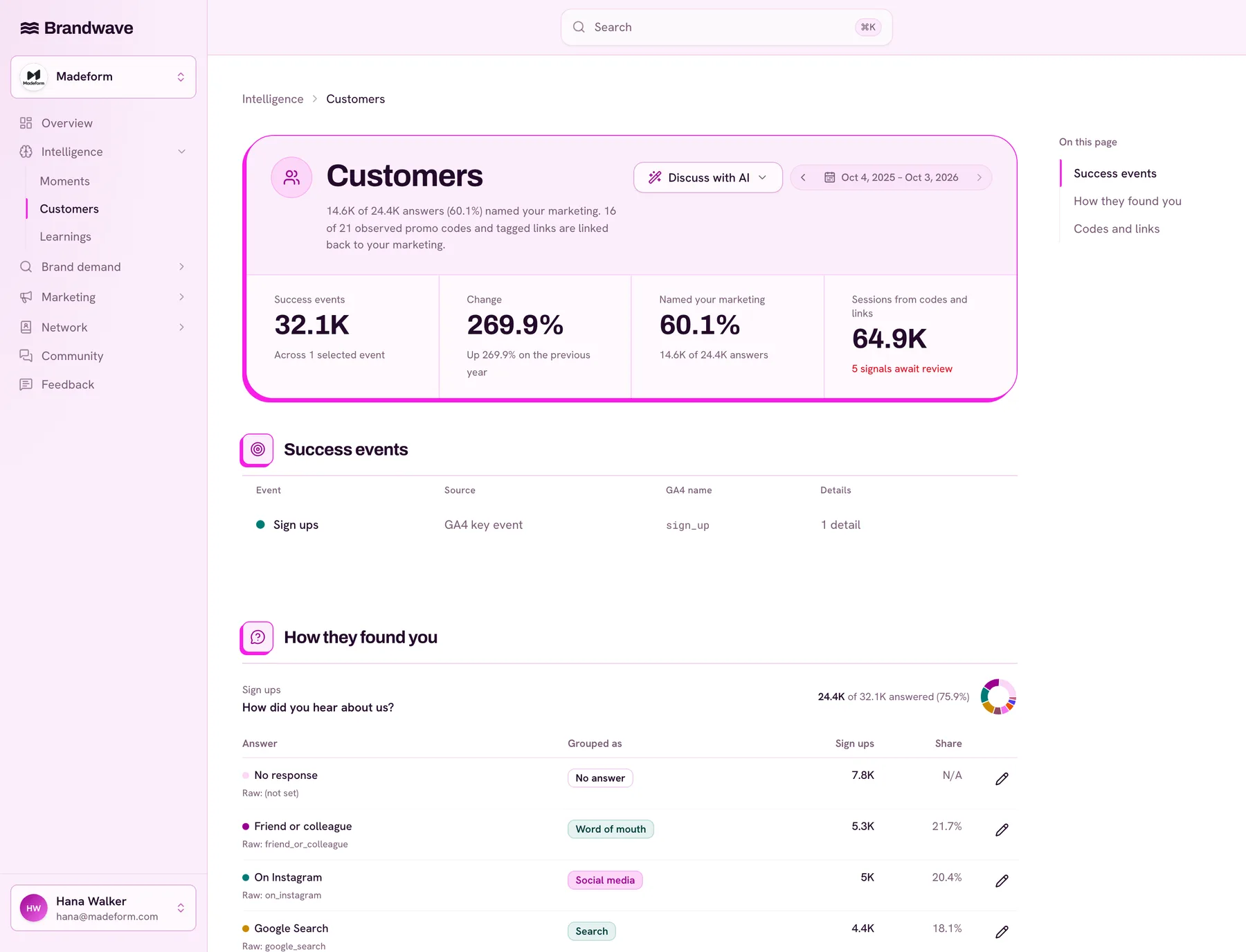
Once data has synced, Brandwave groups the raw HDYHAU answers and shows them beside your GA4 success metrics, creator activities, and marketing campaigns. You can correct inconsistent labels, for example grouping "Instagram", "saw_on_instagram", and a specific creator answer into useful source categories without changing the original GA4 data.
This is full-circle attribution in a practical sense: behavioral analytics shows what happened on the website, the customer tells you where awareness began, and creator-performance data shows what your partners published and when. Seeing those signals together helps you investigate which creators and campaigns may be influencing demand that click-based attribution misses.
Read the result as evidence, not automatic proof that one creator caused every conversion. Look for repeated patterns across time, compare them with tracked links and promo codes, and keep the attribution method visible when you report results. The influencer marketing measurement framework explains how this outcome layer fits with creators, activities, and costs, while the ROI guide covers attribution limits and revenue calculations.
When you are ready to turn that evidence into a decision, your AI assistant can connect to Brandwave through the MCP server, or your team can build a custom workflow with the Brandwave API. This gives the assistant one place to query creator, activity, campaign, cost, performance, and attribution data, compare signals that would otherwise sit in separate reports, and help you identify useful patterns, unanswered questions, and practical next steps.
Troubleshooting checklist
- No event in GTM Preview: confirm the data layer push happens only after the success event succeeds and that the Custom Event trigger name matches exactly.
- Tag fires but
hdyhauis undefined: check the Data Layer Variable name, version, spelling, and capitalization. - Event reaches GA4 without the answer: confirm the GA4 Event tag uses
hdyhauas the parameter name and{{DLV - hdyhau}}as its value. - Dimension is missing in Brandwave: register
hdyhauas an event-scoped custom dimension in the same GA4 property, then wait for GA4 to expose it. - Event is missing in Brandwave: submit a valid test conversion and verify the event in GA4 DebugView or Realtime before reconnecting.
- Answers look fragmented: standardize stored values and use Brandwave’s grouping controls to normalize historical variations.
- Counts do not match every conversion: some people skip the question, and Google may group or hide low-volume values to protect privacy.
Get help with your setup
Closing the loop on reporting by getting HDYHAU data successfully ingested into Brandwave is key to getting the most out of the platform. If you need a hand to get up and running, email [hello [at] gobrandwave.com](mailto:hello@gobrandwave.com) and one of the team will be happy to assist you. You can also compare Brandwave plans before connecting your property.
FAQ
Sources
- Google Tag Manager Help: The data layer (support.google.com)
- Google Tag Manager Help: Custom event trigger (support.google.com)
- Google Analytics Help: Create event-scoped custom dimensions (support.google.com)
- Google Analytics Help: Set up event parameters (support.google.com)
- Google Analytics Help: Monitor events in DebugView (support.google.com)
- Google Analytics Help: About key events (support.google.com)
Get the next article by email
Drop us your email and we'll let you know when we publish a new article.
By continuing you'll get an email for each new article and occasional product news from Brandwave. Unsubscribe any time. Privacy